
Google Search Console is a free tool from Google that shows how your website performs in search: which queries bring up your pages, how many people click, and which pages Google won’t index. This Google Search Console tutorial covers the whole path. You add your site, prove you own it, submit a sitemap, then learn to read the Performance and Page indexing reports. Setup takes about 15 minutes. Reading the data properly takes a few weeks.
Why bother? Because it’s the one place where Google tells you something directly. Paid SEO tools estimate. Search Console reports. If you run a blog, a small business site or client websites in Pakistan, it’s the first tool I’d set up.
Search Console or Google Analytics?
They answer different questions. Search Console covers what happens before the click: queries, impressions, indexing, technical problems. Analytics covers what happens after it: time on page, conversions, traffic from every source. You want both, but start with Search Console. A page Google hasn’t indexed will never show up in Analytics anyway.
Two limits to know early. It only reports on Google, not Bing. And it never fixes anything. It points at problems. You fix them, then ask Google to look again.
Google Search Console setup: add and verify your site
Sign in with a Google account you’ll still control in two years. If you build sites for clients, don’t make your personal Gmail the only owner. Clients leave, freelancers move on, and access gets lost.
Click Add property. You’ll get two choices.
A Domain property covers everything: http, https, www, non-www and every subdomain. Google suggests having at least one, since it’s the most complete view. The catch is that you can only verify it with a DNS record.
A URL prefix property covers only the exact address you type, like https://afhaamacademy.com/. It accepts more verification methods, including an HTML tag, which makes it easier on WordPress.
No DNS access? Use URL prefix. Got it? Add both. It costs nothing.
Here’s a setup I see a lot in Pakistan: the domain is bought from one company and the hosting from another. DNS lives wherever your nameservers point, which isn’t always your host. If Domain verification stalls, check that first.
Three ways to verify
DNS TXT record (Domain property). Choose Domain, enter your domain without https://, and copy the TXT record Google gives you. Add it wherever your DNS is managed (your registrar, Cloudflare, or your host), then click Verify. DNS changes can take a while to spread, so if it fails, wait before you try again.
HTML tag (URL prefix, easiest on WordPress). Pick URL prefix, open “Other verification methods,” and copy the meta tag. Paste it into your SEO plugin’s webmaster tools field. Rank Math, Yoast and SEOPress all have one. Google’s own Site Kit plugin also handles verification.
HTML file. Download the file and upload it, untouched, to your site’s root folder. Rename or edit it and verification fails. Google also won’t follow a redirect to a different domain to find it.
One rule after you’re verified: leave the tag or file in place. Google can re-check, and removing it can cost you access. Then add a second owner under Settings, Users and permissions. If your only verified owner disappears, everyone loses the property.
What you’ll see: Google shows a single line of code that starts with “meta name=google-site-verification” and ends with a long unique code. Copy the whole line exactly as it appears. Your code will be different from anyone else’s.
Submit your sitemap
A sitemap is a list of the URLs you want Google to know about. Submitting one doesn’t guarantee indexing, but it helps Google find new pages sooner, which matters on a young site with few backlinks.
On WordPress your SEO plugin usually builds it. Rank Math and Yoast use /sitemap_index.xml. Plain WordPress uses /wp-sitemap.xml. Open that address in your browser first. If you see a list of links, it works.
Then go to Indexing, then Sitemaps, type the path (sitemap_index.xml) into the box and click Submit. After a few minutes, check the status. “Success” is what you want. “Couldn’t fetch” usually means a typo, a security plugin blocking Googlebot, or a sitemap that’s switched off.
Submit the index file, not every sub-sitemap. And keep junk out of it: noindexed pages, redirected URLs and deleted posts don’t belong in a file that’s supposed to list pages you want in search.
What a healthy result looks like: one row showing your sitemap path, the date Google last read it, a green “Success” status, and a count of discovered pages. If that number is far below the number of posts you’ve published, check whether your SEO plugin is leaving pages out.
Read the Performance report
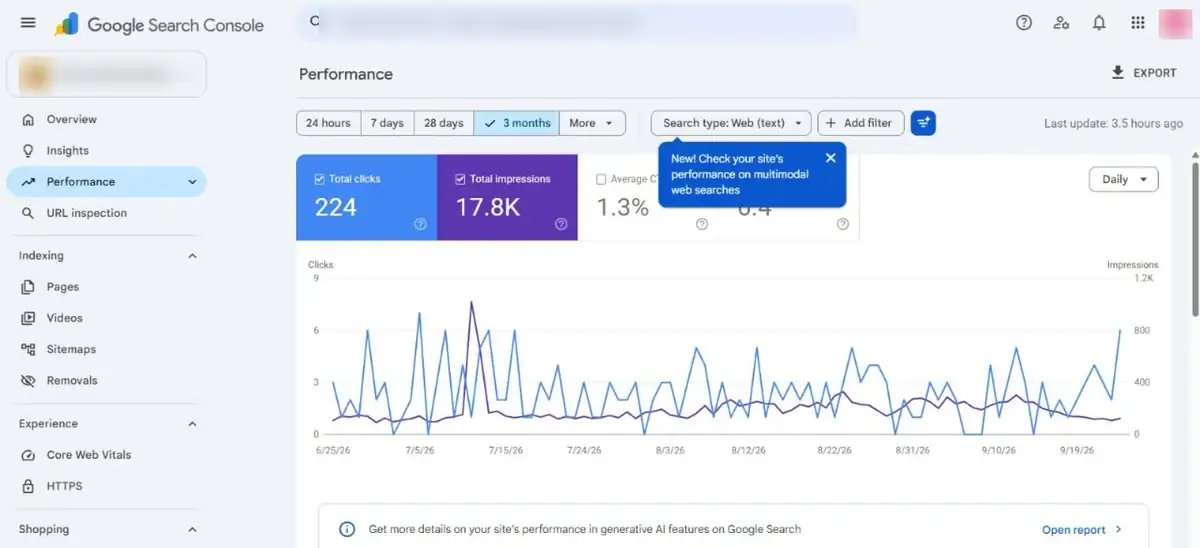
Open Performance, then Search results. You’ll spend most of your time here. Four metrics:
| Metric | What it means |
|---|---|
| Clicks | Times people clicked through to your site from Google |
| Impressions | Times your pages appeared in results |
| CTR | Clicks divided by impressions |
| Average position | Average position of your site’s topmost result for a query |
The default view covers three months. You can go back 16 months and no further, because Google deletes older data. If you want a longer history, export it. There’s also an hourly view for the last 24 hours and a comparison mode, both handy right after you publish or change something.
Beginners trip over the same three things.
Average position isn’t a rank. It’s an average across every time your page was shown, to different people in different places. A page averaging position 8 might sit at 3 for one searcher and 15 for another. With few impressions, the number is close to meaningless.
The totals won’t add up. Google hides some queries for privacy, so the clicks in your query table can be lower than your site total. That’s normal.
And recent data lags. Judge trends over weeks, not days. One odd spike proves nothing. Google itself has acknowledged reporting errors in Search Console before, so look for patterns before you panic.
Filters worth learning first: Queries, Pages, Countries (set it to Pakistan to see local traffic only), Devices (most of your readers are probably on mobile) and Compare, which puts the last 28 days against the 28 before. Check queries in English, Urdu script and Roman Urdu. Pakistani users search all three ways.
Three questions to ask your data
Charts don’t teach you much. Questions do.
Where am I seen but not clicked? Open Queries, pick three months, sort by impressions. Look for searches that show your page often and rarely win the click. Say your post on a digital marketing course in Karachi gets thousands of impressions and few clicks. Search that phrase yourself. If competitors’ titles mention fees, duration or certificates and yours doesn’t, that’s your fix. Rewrite the title and description, then wait a few weeks before judging.
What’s close to page one? Filter for queries averaging position 8 to 20. Those pages already have some relevance. A sharper intro, stronger internal links and a fuller answer can help. Nobody can promise it works, but this is usually where effort pays back fastest.
What did I never target? Scan for queries you didn’t write for. A post about starting a blog might be collecting impressions for hosting questions or an Urdu phrase. Those are free topic ideas. Write a page for each, then link it from the original post.
Example (hypothetical): a Hyderabad tutor’s blog notices that its post on “SEO course fees in Pakistan” appears often but barely gets clicks, while a post on “how to start a blog” sits at position 11 for one query. The tutor rewrites the first title to mention fees and duration, then adds internal links and a clearer answer to the second post. After a few weeks, the tutor compares the same 28-day windows in Search Console. That’s the whole loop: spot the gap, change one thing, measure again.
Check single pages with URL Inspection
Paste any URL from your property into the bar at the top. The URL Inspection tool tells you whether that exact page is in Google’s index, when it was last crawled, which canonical Google picked, and whether mobile usability and structured data look fine.
“URL is on Google” means indexed. It can appear in results, though that says nothing about ranking. “URL is not on Google” comes with a reason, and the reason tells you what to fix. “URL is unknown to Google” means Google hasn’t seen it yet, so request indexing and make sure something on your site links to it.
To request indexing, click Test live URL, then Request indexing. It can speed up discovery, but it isn’t an order. Google applies a quota, and hitting the button again and again on the same page does nothing. If a page still isn’t indexed after a few weeks, the page is usually the problem, not the request.
The live test is also the quickest way to confirm a fix. It shows what Googlebot sees right now, including a stray noindex tag.
Fix indexing problems with the Page indexing report
Go to Indexing, then Pages. Older tutorials call this Index Coverage. Same idea, new name. It splits your URLs into indexed and not indexed, with a reason for each group.
Pages in the “not indexed” list aren’t automatically a problem. Redirects, duplicates and pages you blocked on purpose all end up there. What matters is whether a page you care about is on that list.
| Status | What it means | What to do |
|---|---|---|
| Crawled – currently not indexed | Google visited and chose not to add the page. Often a quality or value issue. | Improve the content, add internal links, check for near-duplicates. Google says you don’t need to resubmit it. |
| Discovered – currently not indexed | Google knows the URL but hasn’t crawled it yet. | Link to it from stronger pages, confirm it’s in your sitemap, check server speed. |
| Duplicate without user-selected canonical | Google found similar pages and picked its own favorite. | Set a canonical tag pointing to the version you want. |
| Excluded by ‘noindex’ tag | The page tells Google to stay away. | Remove the tag if the page should rank. |
| Blocked by robots.txt | Your robots.txt stops crawling. | Edit the file if the block is a mistake. |
| Not found (404) | The URL doesn’t exist. | Restore it, or redirect to a close match if it moved. |
Fix technical blocks first, because they’re usually accidents. Treat “crawled, not indexed” as a content question and answer it honestly: is this page better than what already ranks?
Problems I’d check first on a WordPress site
Start with the whole site disappearing. WordPress has a setting called “Discourage search engines from indexing this site” under Settings, Reading. Developers switch it on during a build and forget it. If everything shows noindex, look there, then at your SEO plugin.
Next, server errors (5xx). They point to weak or overloaded hosting, and if Googlebot keeps hitting them, it crawls less. Check your host’s uptime, drop heavy plugins and use caching. If it keeps happening, the plan itself may be too small.
Redirect errors come from chains and loops, often caused by stacked redirect plugins or a messy http-to-https setup. Aim for one clean hop. Soft 404s are pages that load but look empty, so add real content or return a proper 404. Thin tag and category archives pile up fast, so canonicalize or noindex the low-value ones. And if your sitemap lists redirected or deleted URLs, regenerate it.
After any fix, open the issue in the report and click Validate fix. Google rechecks the affected URLs. It can take days or weeks, so check back now and then instead of refreshing daily.
Example (hypothetical): imagine a new Pakistani blog with 40 published posts. The Page indexing report shows 28 indexed and 12 not indexed. You click the 12 and see two reasons: 8 pages are “Crawled – currently not indexed” and 4 are “Duplicate without user-selected canonical.” The 4 duplicates are a quick technical fix with canonical tags. The 8 crawled pages are thin 300-word posts, so the real fix is rewriting them with more useful content. Same report, two different jobs.
What changed in Search Console in 2026
Google added a lot this year and rolled it out slowly, so some of this may not be in your account yet.
- AI Overviews and AI Mode reporting. Google announced new insights on how your pages appear in its generative AI search features and says they reached all websites worldwide by August 31, 2026. Treat them as a visibility signal for now, not a replacement for standard reporting.
- A generative AI control. Google is testing a toggle that lets site owners choose whether their content appears in those features. Sites that opt out get no traffic or impressions from them. Think hard before you flip it.
- Branded query filter, query groups and AI-assisted report setup. The branded filter separates searches that include your brand name from the rest, which helps you judge real growth.
The basics haven’t moved. Setup, indexing and the Performance report still do most of the work.
A 15-minute weekly routine
Don’t open Search Console every morning. Once a week is enough.
- Compare the last 28 days with the 28 before in Performance.
- Inspect anything you published this week.
- Scan Page indexing for new errors.
- Confirm the sitemap still says Success.
- Check the bell icon for security or manual action messages, and deal with those fast.
Export your Performance data once a month. Sixteen months goes quicker than you’d think.
Frequently asked questions
Is Google Search Console free?
Yes. Any verified site owner can use it at no cost.
How long until I see data?
Google starts collecting once the property is added, but expect a few days before reports show anything useful. A brand-new site may stay quiet for a while.
Do I still need it if I use Rank Math or Yoast?
Yes. Those plugins help you optimize pages. Search Console shows how Google actually treats them. You can connect the two, but they do different jobs.
Why isn’t my page indexed?
Run it through URL Inspection and read the reason. Usual suspects: a noindex tag, a robots.txt block, duplicate content, or content Google didn’t find valuable enough. Fix the cause. Resubmitting alone rarely helps.
Can Search Console improve my rankings?
Not by itself. It reports and diagnoses. Rankings depend on content quality, relevance, links and many other signals. Anyone who guarantees you a ranking is promising something they can’t control.
Keep learning
These Afhaam Academy guides cover what sits around Search Console:
- What Is SEO? A Complete Beginner’s Guide: start here if the terms are new.
- How to Do Keyword Research for Beginners: turn your queries into a content plan.
- What Is Search Intent in SEO?: why some pages get impressions but few clicks.
- On-Page SEO Checklist for Beginners: tidy titles, headings and internal links before you request indexing.
- How to Start a Blog in Pakistan with WordPress: set the site up properly from day one.
- SEO vs AEO vs GEO: where AI search fits next to classic SEO.
If you’d rather practice on real websites with guidance, the SEO Mastery course at Afhaam Academy covers Search Console, technical SEO and content strategy step by step.
Sources and further reading
- Google Search Console Help: Verify your site ownership
- Google Search Console Help: What are impressions, position, and clicks?
- Google: New opportunities, control and insights for website owners (June 3, 2026)
- Search Engine Roundtable: Where Are Those New Google Search Console Features? (February 2026)